Choose the Best External Camera for Windows Hello

application/external-camera-for-windows-hello, application/external-camera-for-windows-hello, 
Inquiry
Inquiry

external camera for windows hello

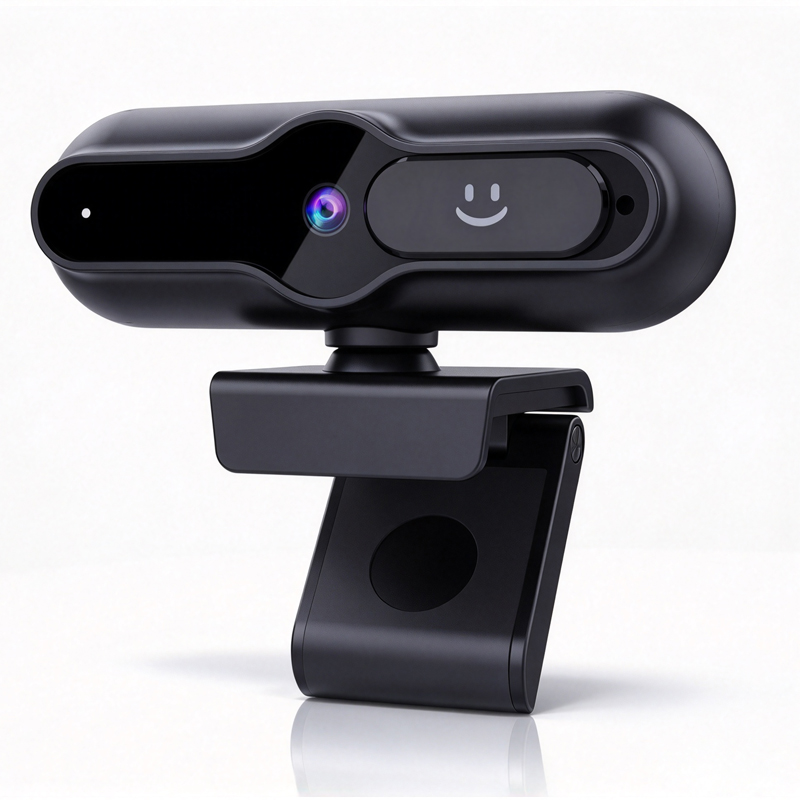
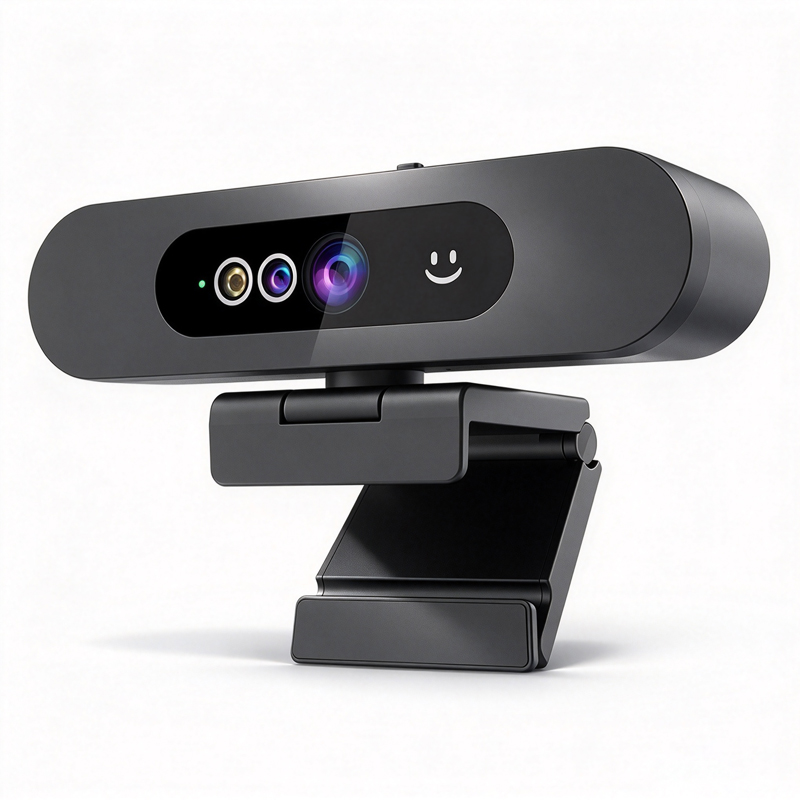
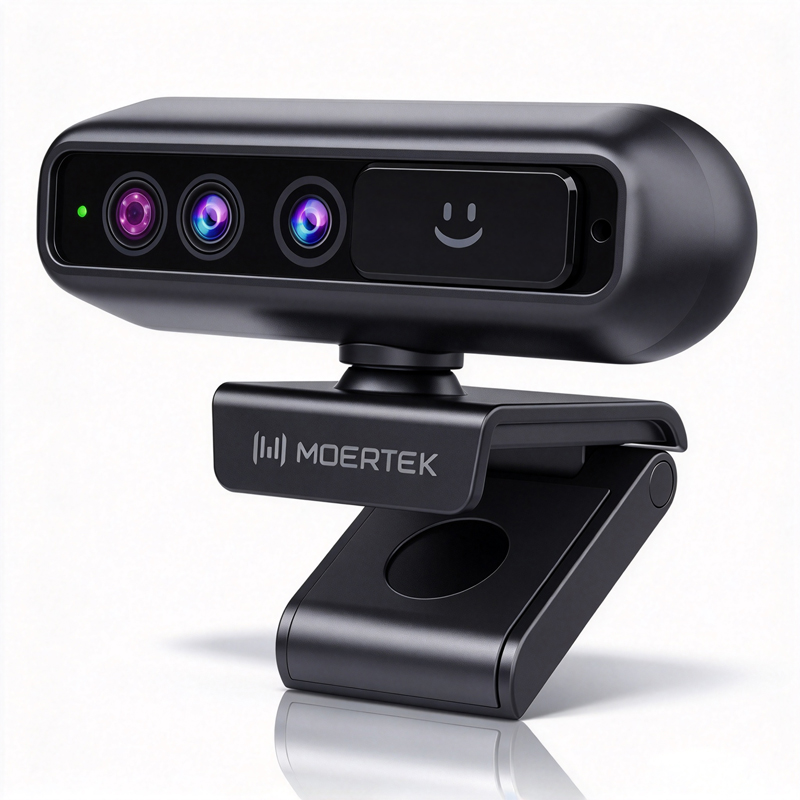
Choosing  the right external camera for Windows Hello is crucial for  businesses aiming to  enhance their  security and  user experience. These  cameras enable facial recognition for secure logins, but  not  all  are created equal. We  will explore  essential factors  to consider when selecting an external  camera for  Windows  Hello, including  specifications, key features, installation guidance, and common issues you might encounter. This information will  help  you  make an  informed decision that aligns with your company's needs.

Specifications to Consider for External Cameras Supporting Windows Hello

Specifications to Consider for External Cameras Supporting Windows Hello

Several technical specifications are  crucial when selecting an external camera  for Windows Hello. These include:

Resolution: A minimum  of 1080p is recommended for clear facial recognition, but 4K resolution cameras, such  as those offered by Moertek, provide enhanced detail and clarity.

Frame Rate: A frame rate of at least 30 frames per second (fps) is necessary for smooth video capture. Higher frame rates can  improve the responsiveness of the facial recognition feature.

Field of  View (FOV): Look for cameras with a FOV of at least 90 degrees to  ensure that multiple users  can  be recognized from various angles.

Low-Light Performance: Ensure the camera can perform well in low-light conditions, which is essential for environments  with varied lighting.


Connectivity Options: USB connectivity is standard, but some  models may offer additional options like Ethernet  or wireless capabilities  for flexible installation.


Certifications: Check for compliance with CE, FCC, and RoHS  standards,  which can  indicate a commitment to quality and safety.

Each of these specifications plays  a vital role in the performance of the camera and its suitability for your business  applications.

Key Features and Benefits

Key Features and Benefits

When  choosing an external camera for Windows  Hello, it’s important to consider specific features that enhance functionality and user experience:

AI Auto-Tracking: This feature allows the camera to follow the user’s movements, ensuring they remain  in frame, which is  particularly  useful during presentations or video calls.

Noise Reduction Technology: Cameras with built-in microphones that incorporate noise reduction  can significantly enhance audio quality, making  communication clearer.

Multiple Mounting Options:  Flexibility in mounting  options allows for versatile placement,  whether  on a desk, wall, or tripod, accommodating various  workspace configurations.

User-Friendly Software: A straightforward installation process and user-friendly software can streamline setup and enhance usability,  reducing  the time spent configuring the device.

Security  Features: Enhanced security features, such as  encryption and secure boot, help protect sensitive data, an important consideration for organizations that prioritize cybersecurity. Implementing a Wireless Presentation System can also bolster security and accessibility.

These features not only improve usability but also contribute  to a more seamless  integration of the camera into your existing  technology  ecosystem.

Installation Guidance for External Cameras Compatible with Windows Hello

Installation Guidance for External Cameras Compatible with Windows Hello

Installing an external camera for Windows Hello can vary based on  the model,  but here are  some general guidelines to ensure proper setup:

Select an Appropriate  Location: Position the camera at eye level for optimal facial recognition. Ensure  there is adequate lighting and minimal background distractions.

Connect  the  Camera: Use the provided USB cable to connect the camera to your computer. Ensure that the port is compatible with your device.

Install Drivers and Software: Follow the manufacturer's instructions to install any  necessary drivers or software. This may  include downloading from  the manufacturer's website.

Configure Settings: Access the camera settings in Windows to  calibrate features such as brightness, contrast, and  exposure. This step is crucial for  optimizing performance.

Test  Functionality: Before full  implementation, test the  camera  using Windows Hello to ensure it recognizes faces accurately under  different lighting conditions  and angles.

Proper installation is  essential for ensuring the camera operates effectively and integrates seamlessly with your existing systems.

Common Problems with Windows Hello Cameras and Their Solutions

While external cameras for Windows Hello  are generally reliable, you may encounter some common issues. Here are  potential problems and their solutions:

Recognition Failures:  If the camera fails to recognize faces, ensure that the lighting is adequate and that the camera lens is clean. Adjusting  the FOV or repositioning the  camera  may also help.

Low  Frame Rate: If users  experience choppy video, check the USB  connection for any issues or try  connecting the  camera to a different port. Ensure that the computer meets the required specifications for smooth operation.

Software Compatibility Issues: Ensure that your operating system is up to date and compatible with the camera's software. If problems persist, consult the manufacturer's support resources for troubleshooting.

Audio  Distortion: If audio  quality  is poor, check the microphone settings and ensure that noise-canceling features are enabled.  Adjusting the microphone's position relative to the speaker  can also improve clarity.

By proactively addressing  these issues, businesses can maintain a smooth operation of their Windows Hello camera systems, enhancing user experience and security.

In summary,  selecting the  right external camera for Windows Hello involves careful consideration of specifications, features, installation, and potential problems.  By understanding these factors, purchasing managers and IT professionals can make informed decisions that enhance security and efficiency in their organizations.

How to Choose the Right External Camera for Windows Hello

When selecting  an external camera for Windows Hello, buyers should consider several  key aspects. First, compatibility is critical;  ensure that  the camera is certified for use with Windows Hello. Look for  models that support the  required specifications, such as 4K resolution and a  minimum frame  rate that enables  smooth facial recognition. For example, a high-quality 4K Webcam can significantly enhance the user experience.

Next, assess the camera's  field of view (FOV). A  wider FOV can accommodate multiple  users, which is particularly beneficial in  conference settings or shared workspaces. Additionally, consider the camera's low-light performance to ensure reliable operation in various lighting conditions.

Lastly, evaluate the manufacturer’s reputation and support services. A  well-established company  with a strong  customer service track record can provide reassurance regarding product quality and after-sales support. Moertek, for  example, specializes  in high-quality conference  cameras and offers expertise in the enterprise sector, making it a trusted choice for businesses. Their Conference system is particularly notable.


Frequently Asked Questions

Is this camera compatible with Windows Hello?

Yes. The external camera supports Windows Hello facial recognition and is designed for seamless authentication on Windows systems.
The camera delivers up to 4K video resolution for clear, detailed images suitable for conferencing and authentication.
Yes. Built-in AI auto-tracking follows speakers and integrated noise reduction improves audio clarity with array microphones.
Our devices carry CE, FCC, and RoHS certifications, ensuring regulatory compliance for global enterprise, education, and telemedicine use.
Yes. Moertek provides OEM/ODM manufacturing and technical support for integration into enterprise and education deployments.

Get a Free Quote

Our representative will contact you soon.
0/1000